
How to Use ChatGPT Images 2.5 for AI Photo Editing
The prompt structure that makes ChatGPT Images 2.5 editing work, plus Sketch, comments, templates, Flare vs Sunburst, pricing, and the real limits.

Umer Khan has spent the last two years building and testing AI-assisted content workflows for YouTube, from scripting to 2D animation. He writes about what actually works in AI video production including the parts that don't.
The fastest way to edit a photo in ChatGPT Images 2.5: upload the image, then write your instruction as two separate lines — one saying exactly what to change, one saying exactly what to keep. That single habit fixes most of the frustration people have with AI photo editing, because the model's biggest improvement in this version is specifically its ability to change one thing while leaving everything else alone.
There's more to it than that, though. This release added a drawing tool, on-image comments, and templates — three features that change how editing actually works, and that most guides on this topic skip entirely.
What is ChatGPT Images 2.5?
ChatGPT Images 2.5 is OpenAI's image generation and editing model, released on September 8, 2026 as a replacement for Images 2.0. OpenAI describes it as producing more natural lighting and richer textures, preserving subjects from reference photos more reliably, and following editing instructions more consistently across multiple turns.
For scale: OpenAI says people create more than 3 billion images every week across ChatGPT Images and the GPT-Image models in the API.
It's an evolution rather than a new class of model. The clearest gains are in editing and speed — raw text-to-image quality moved up only slightly.
Where the improvement actually is (with numbers)
This matters for setting your expectations correctly. According to independent leaderboard figures reported alongside the launch:
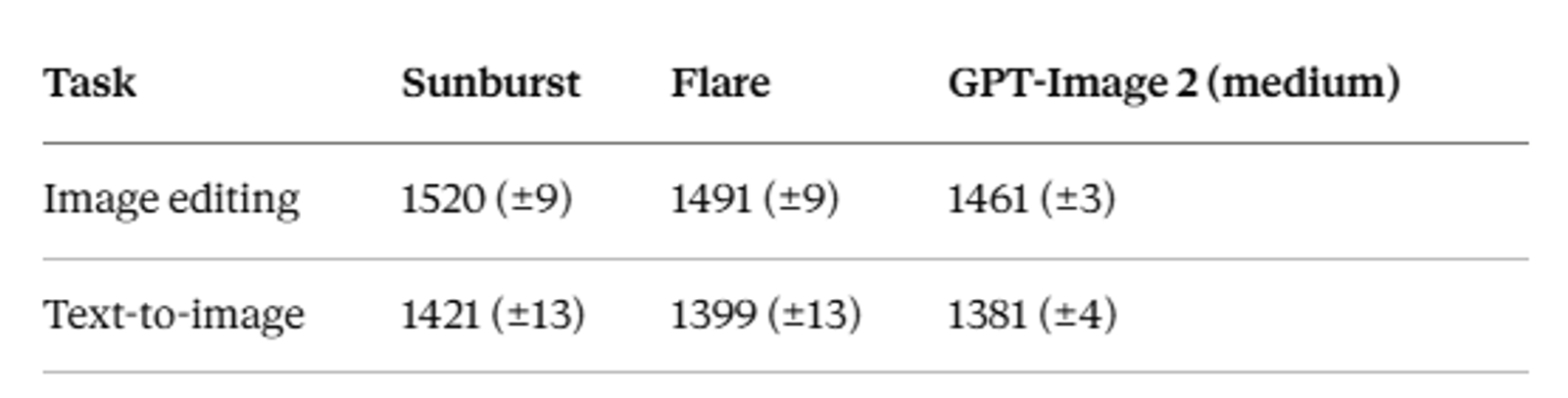
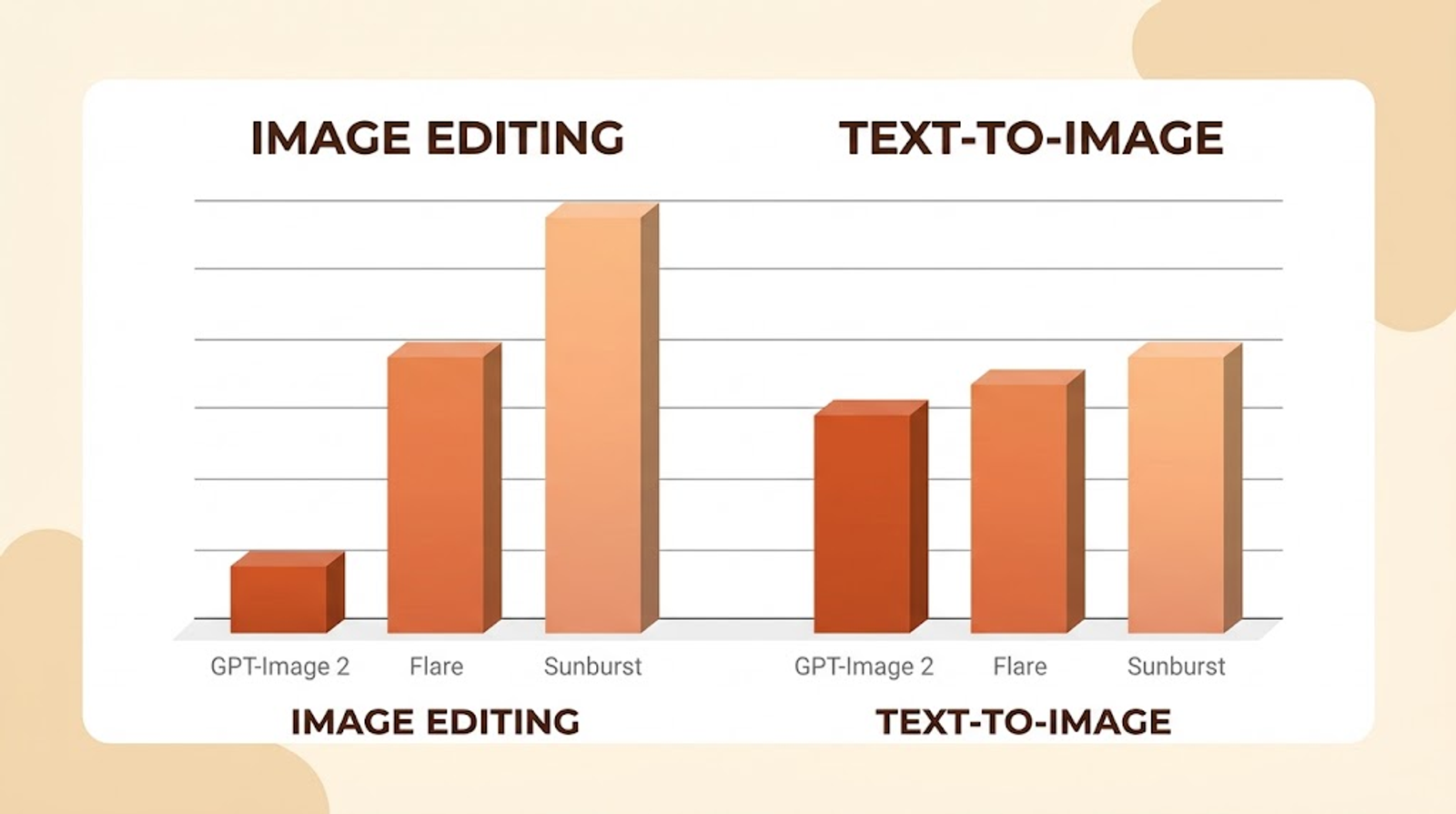
Read that as: if you're editing existing photos, this is a real step up. If you're generating images from scratch with no reference, the difference from the previous model is much smaller. Set your expectations accordingly rather than expecting a leap in every direction.
How to edit a photo with ChatGPT Images 2.5 — step by step
- Upload a clear photo. Sharp and well-lit gives the model more to work with than dark or blurry.
- Name what you're making, first. Start with the deliverable — "product photo," "portrait," "poster," "diagram." The model sets composition defaults from that word before reading the rest.
- Split your instruction into change and keep. "Change the mug to matte forest green. Keep the mug's shape, size, and position identical, and keep the background unchanged." This is the format OpenAI's own precision-editing improvements are built around.
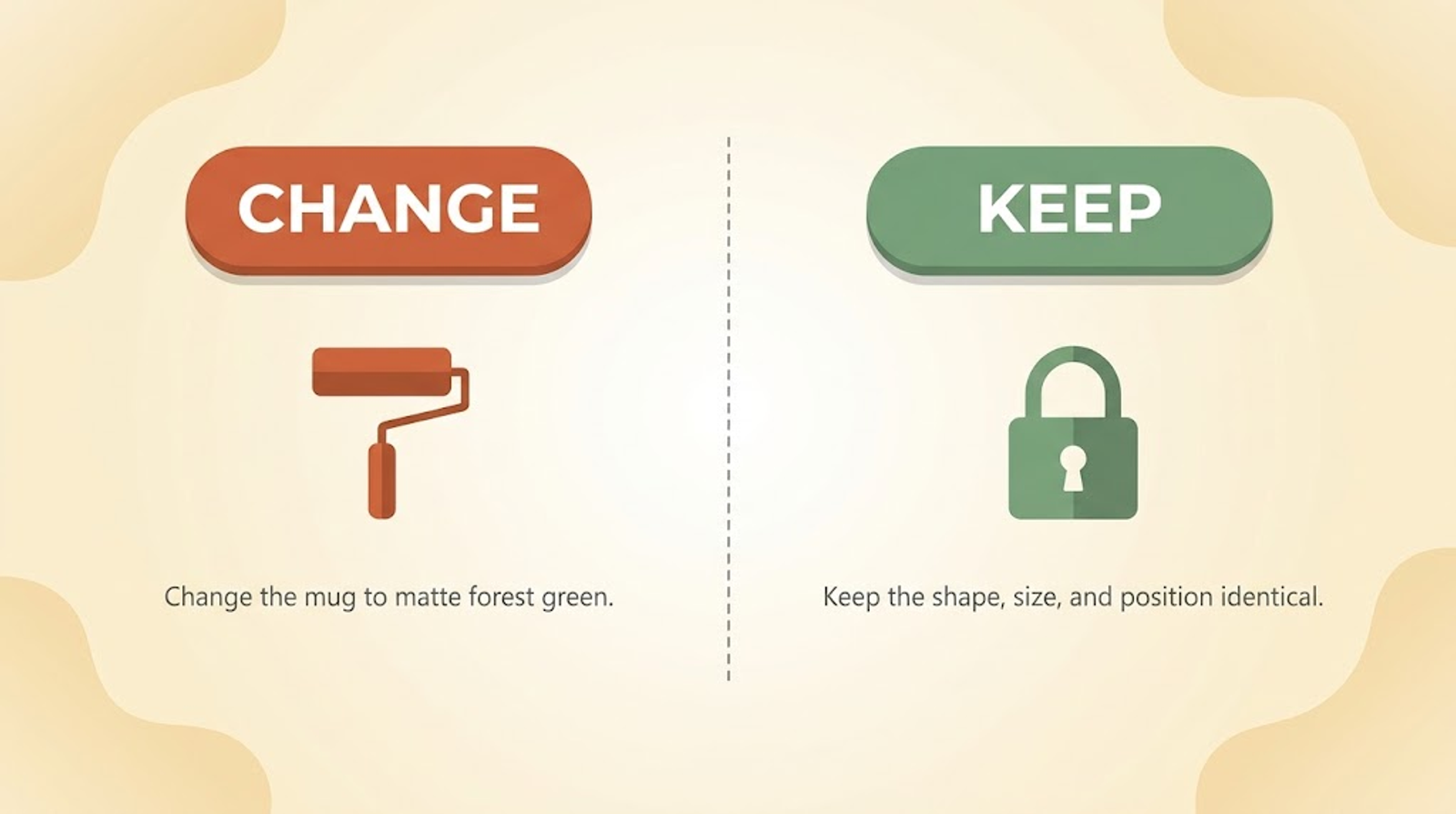
- Describe only what's visible — material, light source, color, medium. Say "photorealistic" or "real photograph" explicitly if that's the goal. Camera and lens terms are style cues, not a physics engine.
- Put on-image text in quotes with its position. Spell unusual words letter by letter, and ask for no extra text. Then check the spelling in the output before anything else.
- For multiple reference images, number them and give each a job: "Image 1 is the subject. Image 2 is the outfit. Image 3 is the palette."
- Iterate one change per turn, and restate your constraints each time. This version holds earlier edits far better than Images 2.0 did, but restating is still the safer habit.
The three new features that change how editing works
Most articles on this topic cover the model and stop there. These three tools are arguably more useful day-to-day than the model upgrade itself.
Sketch — draw instead of describe
Type @Sketch in ChatGPT and you can draw directly in the chat, then use that rough drawing as a visual guide for the final image.
This solves a specific, annoying problem: describing spatial relationships in words is awkward. Explaining exactly where two people should stand relative to each other, or the shape of a jacket collar you're picturing, takes a paragraph of fiddly text — or one scribble. You don't need drawing skill for it to work. A crude shape in roughly the right place gives the model more spatial information than a carefully worded sentence.
Comments on images — point at what you mean
You can now place a comment directly on a specific part of an image rather than describing the region in a follow-up prompt ("the thing in the top-left corner, next to the lamp").
Paired with the improved local editing, this is the most reliable way to change one element — a background, a piece of text, a single object — while keeping the rest intact.
The caveat worth knowing: early reviewers found that point edits are where this works well. Bigger structural changes — moving several objects, re-posing a person — can still break global consistency and introduce artifacts outside the region you edited. Use it for targeted fixes, not wholesale restructuring.
Templates — start from a format
Instead of describing an entire composition from scratch, you can pick a template like "Poster" or "Merch" and fill in the details: what information to convey, design elements, style preferences.
The trade-off is less open-ended creativity, which is fine when you already know the format you want. If you make the same kind of thing repeatedly — flyers, product shots — this cuts down the prompt-writing considerably.
Multi-turn editing: what actually improved
This is the least flashy improvement and possibly the most useful one. In longer conversations, Images 2.5 holds onto earlier edits more reliably, and quality degrades less over a sequence of changes.
In practice, that means you can do this without the image falling apart by step three:
First, change the mug's color to matte forest green. Then add a small potted succulent to the left of the mug. Finally, change the background to a wooden kitchen counter. Keep the mug's shape, size, and position identical across all three edits.
One published hands-on test of exactly this sequence found the edits held consistently, with one hiccup — the model initially shifted the mug's position when adding the succulent, then corrected itself. So it's better, not perfect. If position matters, restate it every turn.
Sharing the prompt behind an image
When you share an image now, you can include the prompt that produced it, so someone else can run the same idea with their own photo.
This is a small feature with an outsized effect on how trends spread — the recipe travels with the result. OpenAI itself points to a viral prompt that reimagines your headshot as an '80s-style portrait as the example. If you've seen that trend on your feed, this feature is part of why it moved so fast. (We covered the prompt structure behind that look in our guide to creating 1980s-style AI images.)
Flare vs. Sunburst: which API model should you use?
For developers, Images 2.5 ships as two API models — gpt-image-2.5-flare and gpt-image-2.5-sunburst.
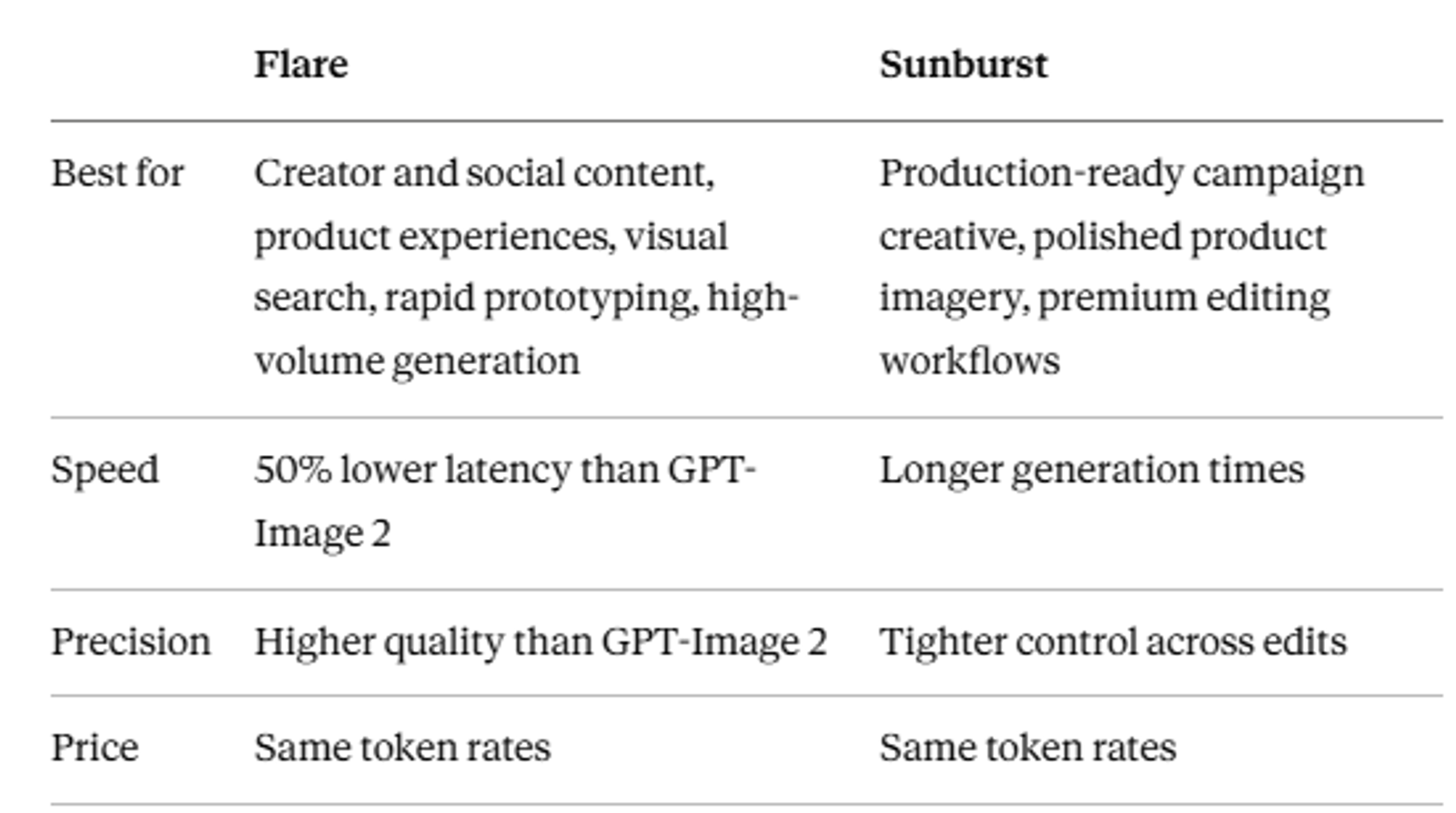
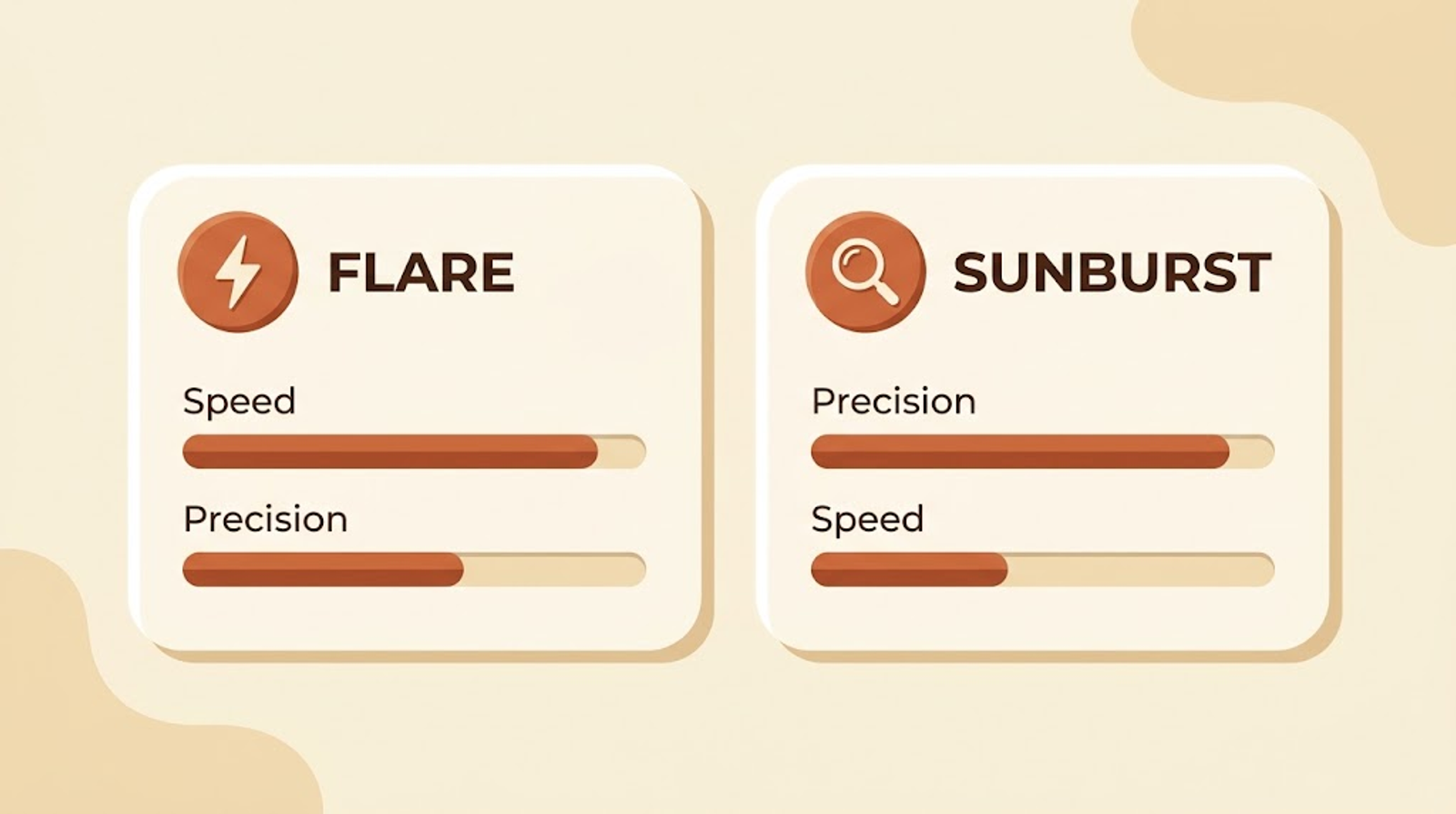
Since both cost the same per token, the decision is purely quality versus latency. The sensible default: start on Flare, and only move to Sunburst when you can actually see the difference in your final assets. For most social and creator work, the speed matters more than the extra precision.
In the regular ChatGPT app, you don't pick between them — that choice exists in the API.
Pricing and availability
In ChatGPT, Images 2.5 is available across all tiers — ChatGPT, ChatGPT Work, and Codex users on desktop, mobile, and web. There's no premium gate on the consumer product, though normal per-plan image generation limits still apply.
In the API, both models share the same published token rates as the earlier GPT-Image 2:
- Image input: $8.00 per 1M tokens
- Cached image input: $2.00 per 1M tokens
- Image output: $30.00 per 1M tokens
- Text input: $5.00 per 1M tokens
- Cached text input: $1.25 per 1M tokens
Per-image cost scales with resolution, since each size tier (1024×1024, 1024×1536, 1536×1024) maps to a fixed number of output tokens. Batch processing runs roughly half the standard rate.
Prices change — check OpenAI's current pricing page before budgeting a high-volume workflow around these numbers.
Watermarking: what creators should know
Images made with these tools carry C2PA metadata and invisible watermarking, which OpenAI uses to help identify AI-generated images.
This matters practically if you're publishing commercially: the provenance information travels with the file. It's not a reason to avoid the tool, but it's worth knowing rather than discovering later — particularly if you're producing client work where AI disclosure is part of the agreement.
Known limits and rough edges
Honest picture, including reports that aren't in the official announcement:
- Dense typography and small text still hit walls. Reviewers consistently note this. If your job depends on precise small-text layout, you'll likely still finish in a design tool.
- Complex layout restructuring breaks consistency. Point edits work well; moving multiple objects or re-posing a subject can introduce artifacts outside the edited area.
- Content filtering has reportedly tightened. Users report prompts involving revealing clothing being blocked more aggressively than before.
- Transparent-background artifacts persist for some users. Despite improved transparent-background handling being a stated improvement, some users report still seeing checkerboard artifacts.
- Some users reported a regression on filmic/vintage-style stills around the rollout period, still present for them after a subsequent fix. This is user-reported, not confirmed by OpenAI — but if that aesthetic is central to your work, test before committing.
- At least one user's comparison test found product-photography accuracy behind some competing models. One test, not a broad benchmark — verify against your own use case.
Why isn't my ChatGPT image generating?
Since the model rolled out to all tiers on September 8, 2026, access shouldn't be the issue for most people. If generation is failing:
- Check whether your prompt is hitting the content filter — try a more conservative version to isolate whether that's the blocker.
- Try a fresh chat session. Some users reported the update notification arriving before their outputs actually changed.
- Check your plan's usage limits. The model is free across tiers, but per-plan generation limits still apply.
What if you want to turn the edited photo into a video?
ChatGPT Images 2.5 generates and edits still images — it doesn't animate them. Turning a finished image into a moving clip is a separate step.
The workflow: edit the photo in ChatGPT until it's right, download the final image, then bring that finished image into an image-to-video workflow to produce a reel. AutoSeedance's Reel Studio handles that second step.
Common mistakes to avoid
- Writing one blended sentence instead of separate "change this" and "keep that" lines.
- Using comments or point edits for large structural changes — they're built for targeted fixes.
- Expecting a big text-to-image leap. The gain is concentrated in editing.
- Describing spatial layouts in long paragraphs when
@Sketchwould resolve it in seconds. - Assuming dense small text will render correctly without checking the output.
Who this is a good fit for
Strong fit if you edit iteratively — refining one image across several turns is exactly what this version was built for. Also good if you produce repeatable formats (templates) or struggle to describe layouts in words (Sketch).
Be more careful if your work depends on dense typography, precise product-photography accuracy, or a specific vintage film aesthetic. Test on a real sample from your own workflow before replacing an existing process.
Final thoughts
Two things carry most of the value here. First, structure every edit as change-plus-keep on separate lines — the model is specifically better at honoring that now. Second, use the new tools rather than ignoring them: Sketch for spatial ideas, comments for targeted fixes, templates for repeat formats. The model upgrade is real but incremental; the workflow features are where the day-to-day time savings actually show up.
Key takeaways
- Change-and-keep on separate lines is the single highest-value prompting habit.
- Editing improved clearly; text-to-image only slightly. Expect accordingly.
- Sketch, comments, and templates are the underrated part of this release.
- Free across all ChatGPT tiers; API pricing unchanged from GPT-Image 2.
- Point edits work well; large structural changes still break consistency.
Suggested related articles
Frequently Asked Questions
Can I use ChatGPT to edit photos?+
Yes. Upload a photo and describe the change while stating what should stay the same. Precision editing — changing only what you asked for while preserving the rest — is the headline improvement in this version.
Is ChatGPT Images 2.5 free?+
In ChatGPT, yes — it rolled out to all tiers on September 8, 2026, including free users, though normal per-plan generation limits apply. API usage is paid per token.
What's the difference between Flare and Sunburst?+
Flare is the default: faster, with 50% lower latency than GPT-Image 2. Sunburst is slower but offers tighter control for premium editing work. Both cost the same per token.
What is the Sketch feature?+
Type @Sketch in ChatGPT to draw directly in the chat and use that drawing as a visual guide. It resolves spatial ambiguity that's awkward to describe in text. No drawing skill needed.
Can I combine two images into one?+
Yes — upload both and assign each a clear role in your prompt ("Image 1 is the subject, Image 2 is the outfit"), rather than uploading them without explaining how they relate.
Are ChatGPT images watermarked?+
Yes. Images carry C2PA metadata and invisible watermarking that OpenAI uses to identify AI-generated content. Worth knowing if you're publishing commercially.
How much better is it than Images 2.0?+
On editing, clearly better — leaderboard scores show Sunburst at 1520 and Flare at 1491 versus GPT-Image 2's 1461. On text-to-image the gap narrows considerably. Generation is up to 50% faster.
Keep reading
Suggested Related Articles
GPT-6 Sol vs Luna: What OpenAI's Pricing Table Actually Means
GPT-6 Sol and Luna launched September 2026 with a pricing table that confused much of Reddit on day one. Here's the real cost breakdown, the naming trap versus GPT-5.6, and which model actually fits your work.
How to Automate Product Video From Your Ecommerce Catalog With AI
AI product video automation actually works two different ways — generative AI and template-based pipelines. Here's the full workflow, which tools fit which job, and what goes wrong once you scale past a handful of products.
10 Best AI Video Generators for Faceless YouTube Channels in 2026 (Real Costs, Real Workflows)
We compared 10 AI video generators for faceless YouTube channels in 2026 — real creator-reported costs, an honest look at one-click vs. manual workflows, and which tool actually fits your format and budget, not just the highest-rated demo reel.
How to Create 1980s-Style AI Images From Your Photos
The exact four-part prompt formula for a convincing 1980s AI photo — plus why faces distort, real privacy trade-offs, and the backlash nobody else is covering.